
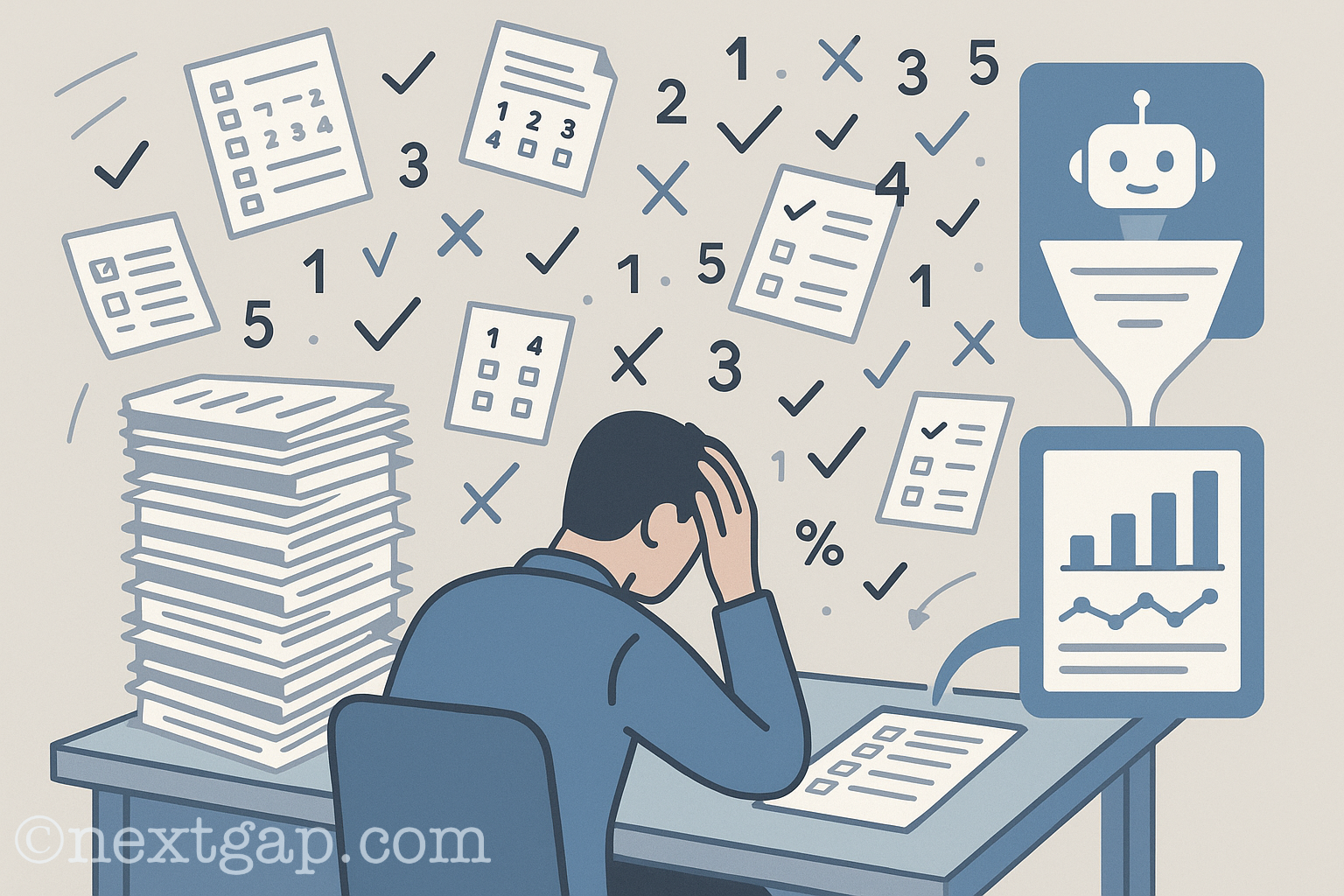
Scoring questionnaires can be exhausting, especially the ones that have many participants, or several scales, or reversed items, meaning you can’t just sum the scores. You can use AI to score questionnaires but as with any task you want the AI to do, you need to give AI a clear prompt (instructions).
Here are my tips and what to pay attention to.
Important note before proceeding:
AI assisted scoring should be treated as a support tool only. Always verify results manually and use professional judgment. Responsibility for interpretation remain yours. See ethical considerations at the end of the post.
First step is to upload files to your favorite AI:
1) An .xlsx file that includes all the questionnaire data as a sheet
2) A simple .txt file with the prompt you wrote
The .txt file should include very clear instructions of:
1) The different range of items and what each block represent (demographic data, measured variables, comments, etc.)
2) How to score the items
3) Handling scales
4) Handling reversed items
5) Rules and exceptions to take into consideration
6) Arranging and formatting the report file, etc.
At the end, your prompt should look something like this (Instructions highlighted):
1 – Input
The input is an Excel file exported from Google Forms.
Each row represents a single participant.
Personal or demographic info is located in columns A-G. Scoring items (whatever your are measuring) are located in columns K–AI (25 questions).
Etc…
(of course you should change the rows number and column letters to represent your .xlsx data. )
2 – Scoring Rules
2.1 – Tell AI how to handle the data:
In this case participant scoring items had three choices to chose from: Untrue, Partially true, Very much true, and the score for each choice:
Untrue=0
Partially true=1
Very much true=2
Whatever scale you use, it’s the same idea: Likert, numerical, etc.
2.2 – If you have reversed items, let the AI know which items they are. Reversed items require special attention because the numerical value must be flipped before scoring.
So first let AI know the reversed items:
Reversed items: 7, 11, 14, 21, 25
And then let the AI know how to score them:
Untrue=2
Partially true=1
Very much true=0
2.3 – Handling blank or missing responses: It’s best to make form fields mandatory to avoid blank cells, but if you forgot or there’s a reason why some fields might be blank, tell the AI how to handle them, if you do not, AI might treat it as it wants, for example score them independently. To avoid that tell AI to:
Scale scores should be calculated only from answered items.
Blank or missing responses must NOT be scored.
Treat missing items as “missing data”.
Report which items are missing (super important!).
Do NOT assign default scores.
3 – Scales (if there are any)
If there are scales in your questionnaire, let the AI know which items make up each scale:
There are five scales, each include five items:
Name of scale A: 3, 8, 13, 16, 24
Name of scale B: 5, 7, 12, 18, 22
Name of scale C: 2, 10, 15, 21, 25
Name of scale D: 6, 11, 14, 19, 23
Name of scale E: 1, 4, 9, 17, 20
Tell AI how to score the scales, for ex:
Sum each scale, and give each scale both a numerical score and a Qualitative rating as follows:
0-2 points: Normal or close to average
3-5: Slightly raised
6-7: Raised
8-10: Very high
4 – Output
Tell AI how to arrange and design the report:
Output Format (Word Document)
Output must be .docx
Title: “Name of My Questionaire”
Language: English
Each participant starts on a new page
Arrange in this order: First name, Last name…………all scale scores + categories…
If missing items exist: add note “One or more items were left blank.”
Highlight with a light red background any scale with a “Raised” or “Very high” score count.
5 – Automation Rules
Follow this instruction file exactly.
When user uploads a new Excel, generate a new DOCX with all rules.
Warn user if missing data or structure issues appear.
6 – Manual Check!!!
As mistakes can be made (By you or by the AI): manually score one or two persons and compare it to the AI’s score.
7 – Ethical Considerations
AI can assist with mechanical aspects of scoring, but it may make mistakes, including mis-scoring items, mishandling reverse items, or misapplying instructions or norms.
Professional responsibility remains entirely with the researcher, AI output should never replace clinical or educational judgment.
Special care must be taken to protect confidentiality and privacy by removing identifying information of the participants and avoiding the upload of sensitive data without informed consent, for ex: you can Replace names with numbers.
AI should be used transparently and cautiously, limited to support functions rather than clinical interpretation, and never relied upon for high stakes decisions without manual verification.
Ultimately, AI is a tool to support workflow. At the end ethical accountability remains with the researcher.